The Complete Guide to Iowa EDMS (eFiling for Pro Se Litigants
Navigating the court system without a lawyer can feel like learning a foreign language. If you are representing yourself in Iowa (known as being a Pro Se litigant), you are required to use the Electronic Document Management System (EDMS) for almost all civil cases, family law matters, and small claims.
I’ve guided plenty of folks through this process. It is highly technical, and the court clerks are very strict about the rules. This guide strips away the distractions of paying tickets or doing public background checks. (If you are looking for general searches, refer back to our complete guide to Iowa Courts Online). Instead, we are focusing entirely on getting your legal documents formatted, redacted, and filed correctly so they are accepted by a judge without delay.
You can learn More about me so you can verify the information what i have provided it to you.
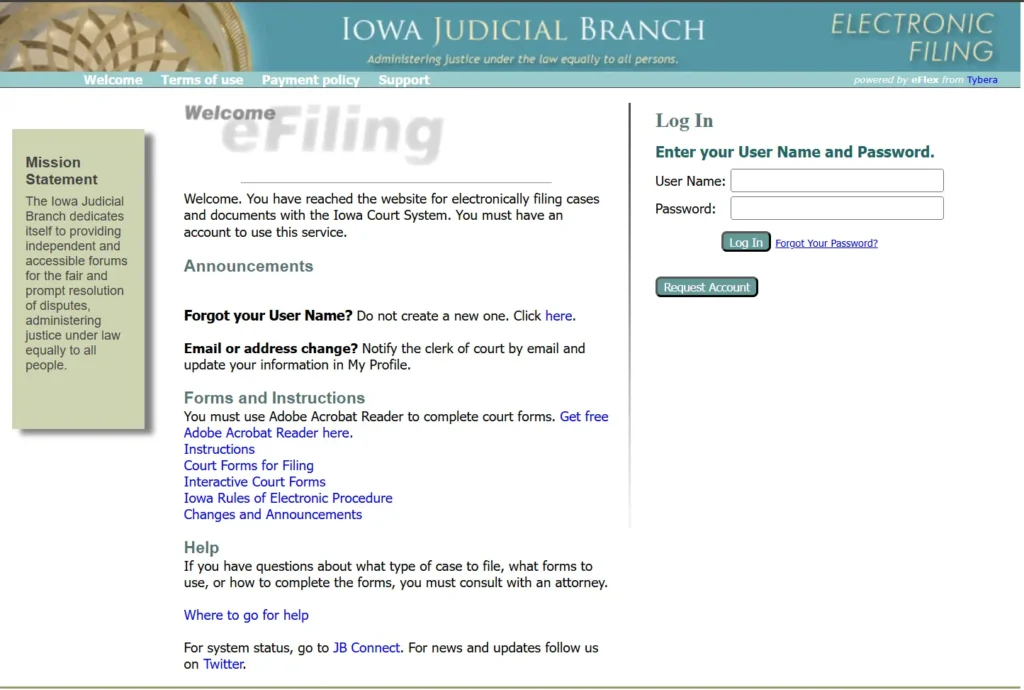
Announcements
Forgot your User Name? Do not create a new one. Click here.
Email or address change? Notify the clerk of court by email and update your information in My Profile.
Forms and Instructions
You must use Adobe Acrobat Reader to complete court forms. Get free Adobe Acrobat Reader here.
Instructions
Court Forms for Filing
Interactive Court Forms
Iowa Rules of Electronic Procedure
Changes and Announcements
Help
If you have questions about what type of case to file, what forms to use, or how to complete the forms, you must consult with an attorney.Where to go for help
For system status, go to JB Connect. For news and updates follow us on Twitter.
Table of Contents
What Exactly is Iowa EDMS?
EDMS is the Iowa Judicial Branch’s mandatory electronic filing system. It replaced the old method of walking into the county courthouse and handing a stack of papers to a clerk.
- Who uses it: Lawyers, judges, court clerks, and self-represented (Pro Se) citizens.
- What it does: It allows you to initiate new lawsuits, file answers to petitions, upload evidence, and receive official court orders electronically.
- The benefit: It creates a permanent, secure digital record of your case that you can access 24/7.
Setting Up Your Pro Se Account
Before you can file a single document, you need an approved account. You cannot just use the public search portal; you need a specific eFile login.
- Go to the Registration Page: Visit
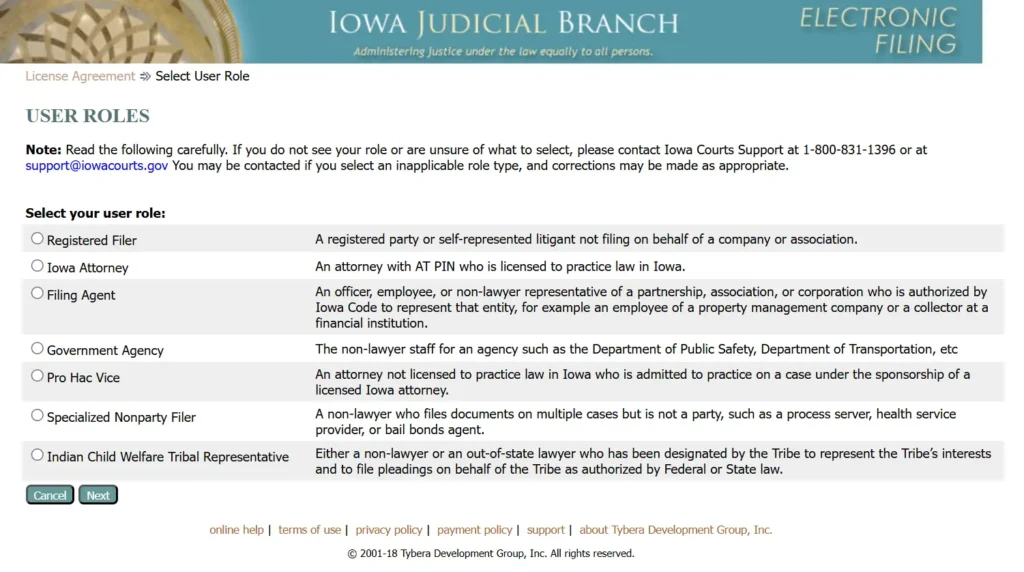
efile.iowacourts.govand click “Request Account.” - Select Your Role: Choose “Self-Represented Litigant.” Do not choose the attorney option unless you have an active Iowa bar number.
- Complete the Details: Fill in your legal name, a reliable email address, and a strong password.
- Security Training: The system requires you to click through a brief training overview. Take this seriously—it covers the basic rules of the system.
- Wait for Approval: Account approval isn’t always instant. You must click the verification link sent to your email.
Strict Document Formatting Rules
This is where most Pro Se litigants make their first mistake. If your document isn’t formatted correctly, the clerk will reject it, which can cause you to miss crucial legal deadlines. (If you need to find the right templates first, check out our guide on finding and using free Iowa Court Forms).
- PDF Format Only: EDMS does not accept Word documents (
.doc), Excel files, or image files (.jpg). You must convert every document to a PDF before uploading. - Searchable PDFs (OCR): You cannot just take a blurry photo of a document with your phone and turn it into a PDF. The court requires “searchable” PDFs, meaning the text can be highlighted and copied. If you are scanning a physical document, ensure your scanner’s OCR (Optical Character Recognition) setting is turned on.
- Page Size and Margins: Documents must be formatted to standard letter size (8.5 x 11 inches). Ensure you have standard 1-inch margins so court stamps don’t cover your text.
- File Size Limits: There are limits on how large a single file can be (usually around 20MB). If you have a massive stack of evidence, you may need to break it into multiple files, labeled “Exhibit A – Part 1” and “Exhibit A – Part 2.”
- No Security Restrictions: Never password-protect your PDFs. The court system must be able to open and apply digital file stamps to them.
The Electronic Signature (/s/)
Because you are filing online, you don’t need to print the document, sign it with a pen, and scan it back in (unless it specifically requires a notary). Iowa uses the /s/ format for electronic signatures.
To sign a standard motion or petition, simply type: /s/ John Doe Followed by your typed address, phone number, and email address below it.
Redaction Rules: Protecting Your Privacy
Iowa courts are public record. When you upload a document to EDMS, anyone with an internet connection can potentially read it. Because of this, Chapter 16 of the Iowa Court Rules mandates that you redact (black out) sensitive personal information before filing.
If you fail to redact this information, the clerk will reject the filing, and you could face sanctions from the judge.
What You MUST Redact:
- Social Security Numbers: Only leave the last four digits (e.g., XXX-XX-1234).
- Financial Account Numbers: Black out bank accounts and credit card numbers, leaving only the last four digits.
- Dates of Birth: For minors, usually, only the year of birth should be visible.
- Names of Minors: In many civil cases, minors should be referred to by their initials (e.g., J.D.) rather than their full names.
How to File Sensitive Info: If the judge needs to see the full Social Security number (like in a child support case), you must use a specific, court-approved “Protected Information Form.” This specific form is uploaded separately and is automatically sealed away from public view by the EDMS system.
How to Upload and eFile Your First Document
Once your PDF is formatted and redacted, you are ready to file.
- Log In: Enter your credentials at the EDMS portal.
- Choose Your Path: Select either “Initiate a New Case” (if you are starting a lawsuit or filing for divorce) or “File into an Existing Case” (if you are responding to being sued).
- Enter Case Information: If filing into an existing case, enter the exact Case ID (e.g., LACV123456) and select the correct county.
- Upload the Document: Click browse, select your PDF, and—this is crucial—select the correct Document Type from the dropdown menu. If you are uploading a “Motion to Continue,” do not label it as an “Original Notice.” Accuracy here helps the clerk process it faster.
- Add Additional Documents: If you have exhibits, add them in the same session.
- Pay the Fee (or Upload a Waiver): If there is a filing fee, you will be prompted to enter a credit card. If you cannot afford the fee, you must upload a “Motion to Waive Filing Fee” in place of payment.
- Submit: Hit submit and wait for the confirmation screen.
Understanding Deadlines and Time Zones
Court deadlines are unforgiving. If you are served with a lawsuit in Iowa, you typically have exactly 20 days to file a formal Answer.
- The Clock Starts: The 20 days begin the day after you are officially served with the papers.
- The Cutoff Time: EDMS operates on Central Time (CST/CDT). To meet a deadline, your document must be submitted and time-stamped by 11:59 PM Central Time on the final day.
- Weekends and Holidays: If your 20th day lands on a Saturday, Sunday, or a state-recognized holiday, your deadline extends to 11:59 PM on the next business day.
Cool tip: Do not wait until 11:50 PM to upload your document. System maintenance, internet outages, or simple upload errors can cause you to miss the midnight cutoff, resulting in a default judgment against you. (If a glitch happens, contact the EDMS Help Desk immediately).
Navigating the Rejection Notice (Returned Filings)
Pressing “Submit” does not mean your document is officially filed. It means it is waiting in a queue for a human clerk to review it.
If you made a mistake (like forgetting to sign it, choosing the wrong county, or failing to redact a bank account), the clerk will “Return” the document to you.
- Check Your Notifications: This is why monitoring your EDMS inbox and email is vital. You will receive a notice saying the document was returned for correction.
- Read the Clerk’s Note: The clerk will always include a brief note explaining exactly why it was rejected (e.g., “Missing signature on page 3” or “Wrong document type selected”).
- Fix and Resubmit: Correct the error on your computer, save the new PDF, and resubmit it through the portal.
Troubleshooting Common Upload Errors
If you are struggling to get the system to accept your file, check these common culprits:
- Browser Issues: EDMS works best on Google Chrome or Microsoft Edge. If it keeps freezing, clear your browser cache and cookies, then try again.
- File Name Too Long: Keep your PDF file names short and avoid special characters. (Use
Motion_To_Dismiss.pdfrather thanMy-Motion-To-Dismiss-Final-Version-123!!!.pdf). - System Outages: Occasionally, the state system goes down for maintenance. If this happens on the day your filing is due, Iowa Court Rules generally allow you to file it on the next day the system is operational—but you must contact the help desk to document the outage.
Conclusion
eFiling as a Pro Se litigant requires patience and attention to detail. By ensuring your PDFs are properly formatted, strictly following redaction rules, and understanding your 20-day deadlines, you can successfully navigate the Iowa EDMS portal. If you run into severe technical issues, don’t hesitate to call the EDMS Help Desk—just remember to have your Case ID ready! For other court matters, like paying an Iowa traffic ticket online or checking for active warrants, head back to our main Iowa Courts hub.